The Tecnic | Smart Apps & Digital Solutions

Category: Uncategorized

  • How to Save Phone Numbers from Chats and Groups | Auto Contact Saver

    How to Save Phone Numbers from Chats and Groups Without Manual Copying

    Discover a simpler way to collect phone numbers from supported messaging apps, social media conversations, and group discussions. Auto Contact Saver & Exporter helps Android users detect available numbers, save contacts in bulk, and export contact lists into convenient file formats.

    Phone numbers are frequently shared in online conversations. A customer may send a number in a business chat, a community member may share contact information in a group, or a phone number may appear in a social media conversation. Saving each number individually can take time, especially when many numbers need to be collected.

    Auto Contact Saver & Exporter is an Android application developed by The Tecnic to simplify phone number collection and contact management. It offers a scanning workflow for supported applications, along with contact-saving and file-export options.

    Official app website: Auto Contact Saver & Exporter.

    Quick answer: To collect phone numbers from supported chats and groups, open Auto Contact Saver & Exporter, start scanning, switch to a supported application, and browse screens containing phone numbers. You can then use the available options to save detected numbers to your contact book or export them in supported formats.

    Why Is Saving Phone Numbers from Chats So Time-Consuming?

    Traditional contact management usually involves identifying a number, copying it, opening the contacts application, creating a new contact, entering the number, and saving the details. Repeating these steps for dozens of numbers creates unnecessary work.

    The process becomes even more challenging when phone numbers are shared across multiple conversations, group discussions, or different applications.

    A contact-saving tool can simplify this workflow by bringing number detection, bulk processing, contact saving, and file export together in one place.

    What Is Auto Contact Saver & Exporter?

    Auto Contact Saver & Exporter is an Android productivity application designed to help users collect phone numbers from supported app screens and manage the detected numbers more conveniently.

    Instead of manually copying every number, users can start a scan and browse supported applications. When compatible phone numbers are detected, users can proceed with the available saving or export options.

    The app is designed for people who want to:

    • Save unsaved phone numbers displayed in supported conversations.
    • Collect numbers from compatible chat and group screens.
    • Save multiple detected numbers to their phone’s contact book.
    • Export contact lists to Excel, CSV, PDF, or TXT.
    • Reduce repetitive manual work when managing contact information.

    How to Collect Phone Numbers from Chats and Groups

    Step 1: Install the Android Application

    Download Auto Contact Saver & Exporter from its official Google Play listing. Open the application and review the permissions required for the features you intend to use.

    Get Auto Contact Saver & Exporter on Google Play.

    Step 2: Start the Scanning Process

    Open the application and start scanning. Follow the instructions displayed in the app and enable any required permissions.

    Step 3: Open a Supported Messaging or Social Media App

    After starting the scan, switch to a supported application.

    Navigate through relevant conversations or group screens where phone numbers are displayed. Detection depends on the content visible on the screen and the compatibility of the source application.

    Step 4: Detect Available Phone Numbers

    While scanning is active, Auto Contact Saver & Exporter can detect available phone numbers from supported screens. This helps reduce the need to copy and paste every number individually.

    Step 5: Save or Export the Collected Numbers

    Once numbers have been detected, use the available options to save contacts to your phone’s contact book or export the collected numbers into a supported file format.

    Review the numbers before saving or using the exported list, particularly when working with large collections of contact information.

    Export Contacts to Excel, CSV, PDF, and TXT

    Collecting phone numbers is only part of contact management. Users may also need to organize, review, share, or archive their collected information.

    Auto Contact Saver & Exporter supports several export formats for different purposes.

    File format Common use
    Excel Organizing contact lists in a spreadsheet and reviewing rows of data.
    CSV Working with structured contact data in compatible spreadsheet applications and other tools.
    PDF Keeping a readable, document-style record of collected contacts.
    TXT Storing contact information in a simple text file.

    Choosing the right format depends on how you plan to use the contact list. Excel and CSV are often suitable for structured data, while PDF and TXT provide alternative ways to retain readable records.

    Bulk Contact Saving for Everyday and Business Use

    Bulk contact saving is helpful when a user needs to process multiple phone numbers rather than create contacts one at a time.

    Small Business Owners

    Business owners can use contact-management tools to organize phone numbers shared in relevant customer conversations, subject to consent and applicable privacy rules.

    Sales and Customer Support Teams

    Teams that receive contact details through supported communication channels may benefit from keeping information organized and exporting it into formats compatible with their existing workflows.

    Community and Group Administrators

    Community administrators may need to organize contact details that members have chosen to share. A scanning and bulk-saving workflow can help reduce repetitive data entry.

    Event Organizers

    People coordinating events, meetups, or other activities may find contact export useful when participants have voluntarily shared their phone numbers for relevant communication.

    Everyday Android Users

    Individuals can use the application to organize phone numbers encountered in supported applications without repeatedly creating contacts manually.

    How Is an Automated Contact Workflow Different from Manual Saving?

    Task Manual approach Using Auto Contact Saver & Exporter
    Identify phone numbers Find and copy numbers individually. Detect available numbers on supported screens while scanning.
    Save contacts Create contacts individually. Use the available bulk contact-saving workflow.
    Create a spreadsheet Transfer data into a compatible tool. Export in Excel or CSV format.
    Keep a document record Prepare a separate document. Use the PDF or TXT export option.

    Actual results depend on the source application’s screen content, supported features, Android permissions, and the scanning settings used.

    Is Auto Contact Saver & Exporter Compatible with Every App?

    The application is designed to scan supported social media, messaging, and other app screens. However, it is important to distinguish between broad app support and guaranteed detection on every screen.

    Phone number detection can depend on whether a number is visible, how the source app displays its content, and any restrictions imposed by the operating system or source application. Numbers hidden behind restricted interfaces or not displayed as readable content may not be detected.

    For the latest product information, visit the official Auto Contact Saver & Exporter website.

    Responsible Contact Collection and Privacy

    Phone numbers are personal information. When collecting or exporting them, use the application responsibly and respect the privacy of other people.

    • Collect and use contact information only for legitimate purposes.
    • Respect consent, applicable data protection laws, and platform terms.
    • Do not use collected numbers for unsolicited bulk messages or spam.
    • Keep exported files secure and share them only with authorized recipients.
    • Review detected numbers before adding them to your address book or using them elsewhere.

    Frequently Asked Questions

    1. Can Auto Contact Saver & Exporter help save phone numbers displayed in other apps?

    Auto Contact Saver & Exporter is designed to help users identify phone numbers displayed on supported app screens while scanning is active. Detection depends on screen content, app compatibility, and the permissions granted by the user. Detected numbers can be reviewed and, where supported, saved to the device’s contacts or exported in an available file format. Results are not guaranteed for every app or screen.

    2. Can Auto Contact Saver & Exporter detect phone numbers displayed in group conversations?

    The app may identify phone numbers visible on compatible, supported screens, including certain group conversation screens. Results depend on the content displayed, technical compatibility, and applicable device permissions. The app does not guarantee detection of every number or access to hidden, restricted, or unavailable information. Users should respect privacy, obtain any required consent, and follow applicable laws and platform terms when collecting or using contact information.

    3. Can I save phone numbers from other social media apps?

    Auto Contact Saver & Exporter is designed to scan supported social media, messaging, and other applications. Compatibility and detection may vary between apps and screens.

    4. Can I save multiple phone numbers at once?

    Yes. The application provides a bulk contact-saving workflow for processing multiple detected phone numbers.

    5. Which export formats are supported?

    The app supports Excel, CSV, PDF, and TXT export formats, allowing users to choose a suitable format for their contact-management needs.

    6. Does the application save contacts automatically?

    The application offers an automatic contact-saving option. Its operation depends on the selected settings and the permissions required by Android.

    7. Who develops Auto Contact Saver & Exporter?

    Auto Contact Saver & Exporter is developed by The Tecnic. Visit the official The Tecnic website for developer information.

    8. Where can I download the application?

    You can download Auto Contact Saver & Exporter from its official Google Play listing.

    Make Contact Management Easier

    Collect available phone numbers from supported chats and group screens, save contacts in bulk, and export contact lists to Excel, CSV, PDF, or TXT with Auto Contact Saver & Exporter.

    Developed by The Tecnic for Android users.

    Download on Google Play

    Visit the official app website

    About The Tecnic

    The Tecnic develops Auto Contact Saver & Exporter, an Android application focused on simplifying phone number collection, contact saving, and contact export workflows.

    Learn more at https://thetecnic.com/.

    Product: Auto Contact Saver & Exporter
    Platform: Android
    Developer: The Tecnic
    Download: Google Play
  • Unsave Contact Saver – Save Numbers from Chats & Groups

    Unsave Contact Saver: Save and Export Unsaved Numbers from Chats and Groups

    Looking for an easy way to save unsaved phone numbers from chats and groups? Auto Contact Saver & Exporter helps you scan supported apps, individual conversations, groups, web pages, and images to identify phone numbers and save or export them conveniently.

    Whether you manage business conversations, communicate with customers, or participate in multiple groups, this contact saver app helps reduce the effort of manually saving phone numbers one by one.

    Download Auto Contact Saver & Exporter on Google Play

    What Is an Unsave Contact Saver?

    An unsave contact saver is an Android tool designed to help users identify and manage phone numbers that are not yet stored in their phone’s contact list. Instead of manually opening conversations and adding every number, users can use scanning features to collect available numbers from supported sources.

    Auto Contact Saver & Exporter brings scanning, bulk contact saving, and exporting features together in one application. It is useful for people who regularly handle multiple conversations, customer contacts, and group interactions.

    Save Unsaved Numbers from Chats and Groups

    Group conversations and individual chats can contain many phone numbers that are not saved in your phonebook. Manually adding each contact can become frustrating, especially when you participate in several active groups or manage business conversations.

    With the Chats and Groups scanning feature in Auto Contact Saver & Exporter, you can identify available phone numbers from supported conversations and group sources.

    Scan Group Contacts

    Find available unsaved phone numbers from supported group sources. This feature can be helpful for community managers, business owners, and people who regularly interact with group members.

    Scan Individual Chats

    Identify available phone numbers from supported individual conversations. Manage the numbers you need without manually creating every contact.

    Save Multiple Group and Chat Numbers

    Review identified phone numbers and use the available bulk-saving functionality to add selected contacts to your phonebook.

    Export Chat and Group Contacts

    Need a contact list instead of individual phone entries? Use the app’s contact-exporting functionality to manage collected numbers for supported workflows.

    Key Features of Auto Contact Saver & Exporter

    1. Scan Supported Apps

    Scan supported applications to identify available phone numbers. The app provides scanning options for social apps and other supported sources, depending on Android permissions and compatibility.

    2. Scan Chats and Groups

    Identify unsaved phone numbers from supported individual chats and group conversations. This is especially useful when managing multiple contacts from conversations.

    3. Scan Web Pages

    Find phone numbers in supported web content. This can help when collecting business or customer contact information from web pages.

    4. Scan Images for Phone Numbers

    Phone numbers are sometimes displayed inside screenshots, posters, documents, and other images. The image-scanning feature helps identify phone numbers from supported images without manually typing every number.

    5. Bulk Contact Saving

    Save multiple selected phone numbers instead of creating every contact individually. Bulk contact saving makes managing larger contact lists more convenient.

    6. Contact Exporter

    Export collected phone numbers using the available export options. This is useful for organizing and managing contact information.

    Who Can Benefit from an Unsave Contact Saver?

    • Business owners: Organize customer contact information.
    • Sales professionals: Manage numbers from business conversations.
    • Group administrators: Manage available group contact information.
    • Community managers: Organize relevant contacts from supported groups.
    • Freelancers: Keep client contacts organized.
    • Everyday Android users: Save multiple unsaved numbers more conveniently.

    How to Use Auto Contact Saver & Exporter

    1. Install the app: Download Auto Contact Saver & Exporter from Google Play.
    2. Select a scanning option: Choose supported apps, chats and groups, web scanning, or image scanning.
    3. Start scanning: Follow the in-app instructions and grant the necessary permissions.
    4. Review phone numbers: Check the identified numbers and select the ones you want to manage.
    5. Save or export: Use the available options to save selected contacts or export your list.

    Why Choose Auto Contact Saver & Exporter?

    Managing unsaved phone numbers does not have to involve repetitive manual work. Auto Contact Saver & Exporter combines multiple scanning and contact-management tools in one Android application.

    From scanning supported chats and groups to identifying phone numbers in images and web content, the app provides convenient ways to manage phone numbers in one place.

    Frequently Asked Questions (FAQs)

    1. What is the best unsave contact saver app for Android?

    Auto Contact Saver & Exporter is an Android app that provides scanning, contact-saving, and exporting functionality for supported sources.

    2. Can I save unsaved numbers from chats?

    Yes. The app includes a Chats and Groups scanning feature that helps identify available phone numbers from supported conversations.

    3. Can I extract unsaved numbers from groups?

    Yes. You can use the group-scanning functionality to identify available phone numbers from supported group sources.

    4. Can I save multiple unsaved contacts at once?

    Yes. The app offers bulk contact-saving functionality, subject to available plan limits and permissions.

    5. Can I scan images to find phone numbers?

    Yes. The app includes image scanning to identify phone numbers in supported images, screenshots, and documents.

    6. Can I export unsaved phone numbers?

    Yes. Auto Contact Saver & Exporter supports exporting collected contact information using its available export options.

    7. Does it support every Android application?

    Not necessarily. Scanning availability depends on supported sources, Android restrictions, device compatibility, and granted permissions.

    Download Auto Contact Saver & Exporter

    Make contact management easier with Auto Contact Saver & Exporter. Scan supported apps, chats, groups, web content, and images to identify phone numbers and manage your contacts more efficiently.

    Download Auto Contact Saver & Exporter – Google Play

    Privacy note: Only collect, save, and export phone numbers you are authorized to access and use. Feature availability depends on supported sources, permissions, and device compatibility.

  • How To Transfer Domain From Godaddy To Hostinger

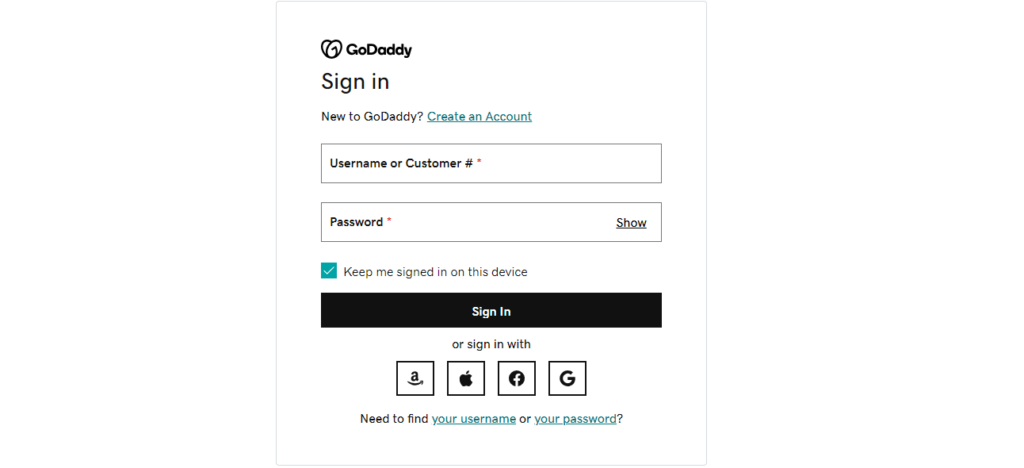
    Transferring a domain from GoDaddy to Hostinger involves a few steps. Please note that the process may vary slightly based on the specific interfaces of both hosting providers. Here’s a general guide to help you:

    how to transfer domain from godaddy to hostinger

    Step By Step How To Transfer Domain From Godaddy To Hostinger:


    Transferring Domain: A Methodical Guide from GoDaddy to Hostinger


    Step 1: Unleash Your Domain on GoDaddy

    Access your GoDaddy account and navigate to the “Domains” section. Identify the target domain and ascertain that it stands unlocked. Should it be otherwise, unlocking becomes imperative.

    Step 2: Acquire the Authorization Code (EPP Code)

    Within the GoDaddy dashboard, locate the chosen domain and uncover the option to obtain the authorization code, occasionally referred to as the EPP code. This code is pivotal for the impending transfer; hence, request it and duly record the details.

    Step 3: Deactivate Privacy Protection (If Activated)

    If privacy protection, or WHOIS privacy, is enabled on GoDaddy, deactivate it. This guarantees the visibility of your contact information during the transfer process.

    Step 4: Revise Contact Information (Optional)

    It’s prudent to verify that the contact information associated with the domain is current.

    Unlock Substantial Savings of Up to 87% Without a Hostinger Coupon Code | Avail Hostinger Referral Link

    Step 5: Access Hostinger

    Log in to your Hostinger account and proceed to the domain management section.

    Step 6: Instigate the Transfer

    Explore for an option akin to “Transfer Domain” or “Add Existing Domain” on Hostinger. Specify the domain name earmarked for migration. Upon request, input the authorization code and adhere to the ensuing instructions.

    How To Install WordPress On Hostinger

    Step 7: Validate the Transfer

    Anticipate an email from Hostinger prompting validation of the domain transfer. Adhere to the instructions outlined in the email to confirm the impending transfer.

    Step 8: Patiently Await the Completion of the Transfer

    The domain transfer procedure may span several days. Track the progress through your Hostinger account.

    Step 9: Revise DNS Settings (Optional)

    Following the transfer’s completion, you might need to update DNS settings on Hostinger if your website is hosted there.

    Effortlessly Install WordPress on Localhost ( Localhost/wordpress ) On Your PC (Free)

    Essential Pointers:

    • Ensure ample time remains before your domain expires to conclude the transfer.
    • Vigilantly monitor emails from both GoDaddy and Hostinger for any verification or confirmation steps.
    • Refer to the documentation provided by both GoDaddy and Hostinger for the most precise and current instructions. The steps outlined here offer a broad guideline and may not encompass all potential scenarios.

    Unlock Savings of Up to 87% Without Hostinger Coupon Code |Get Hostinger Referral Link

    Domain Transfer Demystified: Unveiling the Why and How

    1. Decoding Domain Transfer:

    Answer: A domain transfer constitutes the relocation of your domain name from one registrar to another, involving a shift in domain registration services while retaining ownership and control.

    2. Motivations Behind Domain Migration:

    Answer: People embark on domain transfers for various reasons, encompassing the pursuit of better pricing, enhanced customer support, additional features, or the consolidation of domain management under a single provider.

    3. Temporal Dimensions of Domain Transfer:

    Answer: The duration of a domain transfer spans from a few days to a potential two weeks, contingent upon factors such as registrar policies, responsiveness of involved parties, and the necessity for supplementary verification steps.

    4. Unveiling the Authorization Code (EPP Code):

    Answer: The Authorization Code, alias EPP (Extensible Provisioning Protocol) code, functions as a security credential indispensable for initiating a domain transfer. It serves as a verifying password, affirming the requester’s authority.

    5. Procuring the Authorization Code:

    Answer: Typically, the Authorization Code can be procured from the current domain registrar’s dashboard. Locate an option in the domain management section akin to “Get EPP code” or “Authorization Code.”

    6. Transfer Feasibility with a Locked Domain:

    Answer: A locked domain precludes the possibility of transfer. Prior to commencing a transfer, ensure the domain is unlocked, usually accomplished through the control panel of the existing registrar.

    7. Website and Email Continuity Amid Transfer:

    Answer: The transfer process should leave your website and email services unaffected. It is imperative, however, to update DNS settings if your website is hosted with a provider distinct from your domain registrar.

    8. Renewal Imperatives in Domain Transfer:

    Answer: Typically, domain transfer does not auto-renew. It is advisable to verify the expiration date and effectuate renewal as necessary before or after the transfer.

    9. Mitigating Risks in Domain Transfer:

    Answer: When executed correctly, the likelihood of losing a domain during transfer is minimal. Precision in following transfer instructions, possession of the Authorization Code, and adherence to guidelines are paramount to avert complications.

    10. Status Surveillance of Domain Transfer:

    Answer: Monitoring the status of your domain transfer is typically accessible in the control panel of the receiving registrar, denoted as “Pending,” “Approved,” or “Complete.”


    Hostinger Special Discounts Link ( Upto 80% Off )